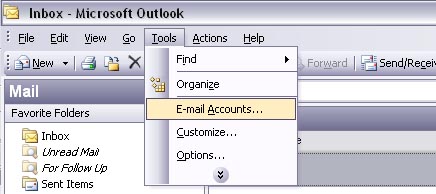
- Open Outlook
- Go to Tools | Email Accounts

- “View or change existing e-mail accounts” should already be marked
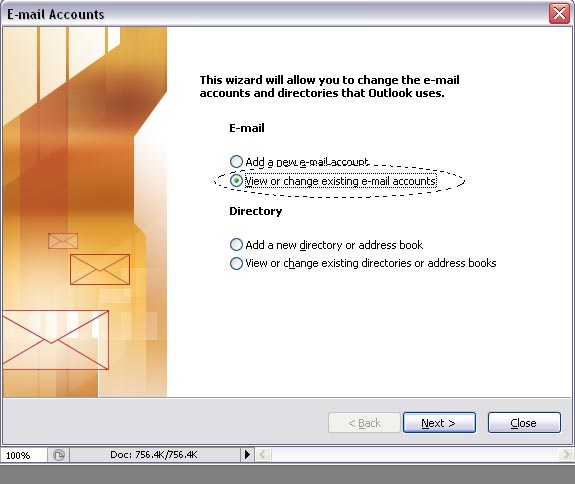
- Click Next
- Select the Account with the trouble and click Change
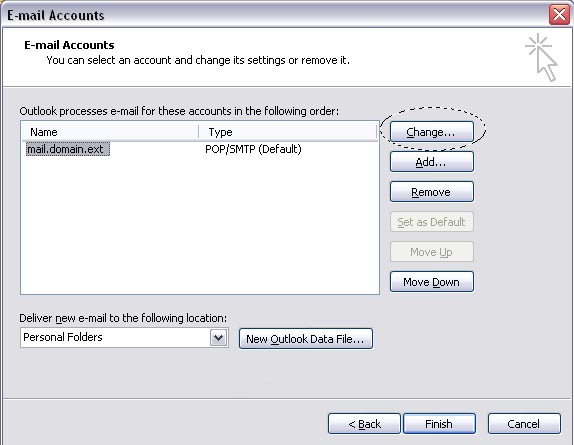
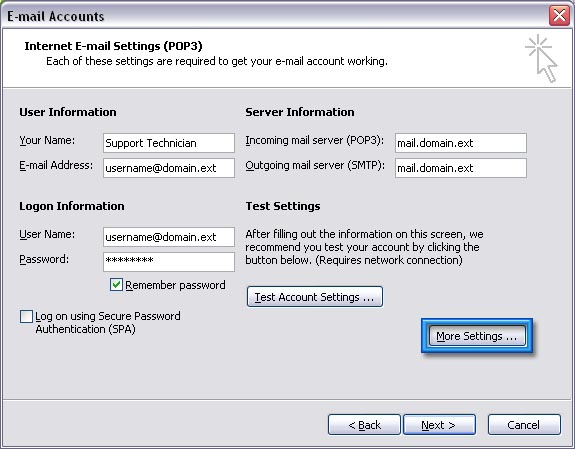
- Click on More Settings
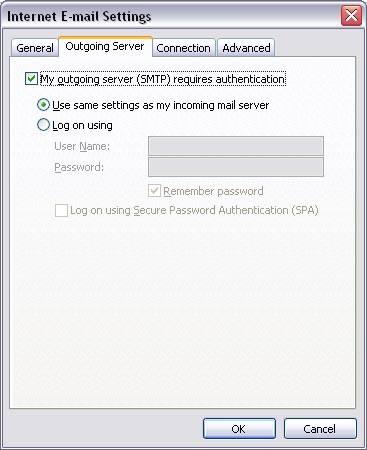
- Click on the Outgoing Server Tab
- Click “My outgoing server (SMTP) requires authentication” and make sure “Use same settings as my incoming mail server” is selected
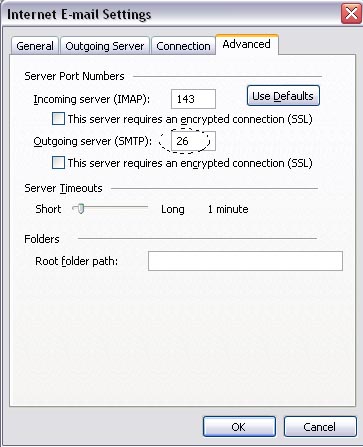
- Click on the Advanced Tab
- Set “Outgoing server (SMTP):” port to 26
- Click OK and then Test Account Settings
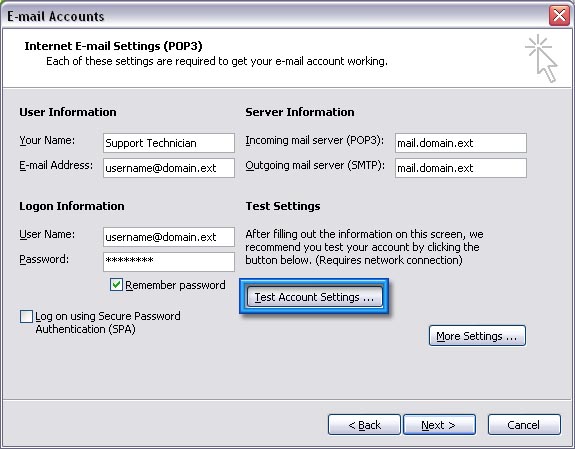
- If everything is fine and reports no errors,
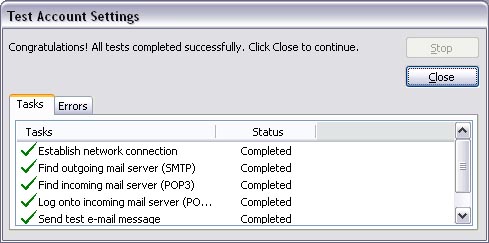
- Click Close.
- Click Next.
- Click Finish.
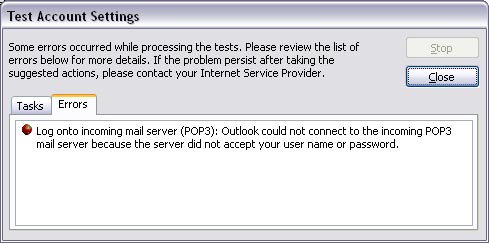
- If an error does occur, it will switch to the Errors tab and display the error